QR code menus for restaurants: Setup, benefits and best practices
A guest sits down, glances at the table, and pulls out a phone. Seconds later, they're reading your full menu, allergens included, and the dish you sold out of twenty minutes ago has already vanished from the screen. That is the promise of a QR code menu. Whether it delivers depends on the details behind the code.
Plenty of restaurants print a code, stick it on the tables, and stop there. Guests scan it, wait for a heavy PDF to load, and pinch their way down the page. This guide covers what a QR code menu is, where to place it, and how to set one up so guest use it.
What is a QR code menu?
A QR code menu is a scannable square that opens your restaurant's menu on a guest's phone. Guests point their camera at it, tap the link that appears, and read your dishes in the browser. They don't download an app.
Setups fall into two types:
- A static link opens a fixed page or PDF. You can swap the file, but guests zoom and scroll a lot on a small screen.
- A live digital menu opens a page connected to your menu system. Price changes appear at once, and guests see descriptions, dietary tags and modifiers. Some versions also take orders from the table.
A static link works for a first trial. A live menu earns its place once you change dishes weekly, because every edit reaches every table without a new file.
Why restaurants move away from printed menus
Printed menus carry hidden work: reprinting, replacing sticky or stained pages, and fixing typos after the print run ends. A digital menu removes most of it.
- Updates reach every table at once, so nobody orders from an outdated page.
- Seasonal specials skip the print run.
- International guests read the menu in their own language once you add translations.
- Descriptions, allergens and photos fit where a printed page runs out of room.
- Guests who want to order can do it without waiting to catch a server's eye.
Take a hotel café that rewrites its lunch specials every few days. On paper, someone redesigns, prints and swaps every menu each time. With a live menu, the chef edits one entry and moves on. That time goes back to the floor, where your team can talk to guests.
Where should the code go?
Place the code where guests already look:
- On each table, in a small stand or sticker near the centre. Guests look down when they sit.
- At the entrance or host stand, where waiting guests browse ahead.
- On takeaway packaging and window displays, so passers-by check your dishes before they walk in.
- In hotel rooms and lounges, for in-room dining.
Give each table its own code when you want orders linked to specific tables. The kitchen then knows exactly where every order came from. Restaurants that connect their menu to table ordering get this link without extra work from the floor team.
How do you set up a QR code menu?
Setup takes an afternoon, not a project. Work through these five steps in order.
- Check your menu content. Read every item name, description and price aloud with your chef, and confirm allergen details at the same time. Fixing a typo now costs nothing. Fixing it across every table costs an evening.
- Build a mobile-friendly menu. Skip the PDF. Use short sections, tap-friendly category buttons and compressed images.
- Generate the code and test it. Scan it on an iPhone and an Android phone, on mobile data and on Wi-Fi, in your dining room's real lighting.
- Place the codes. Add a short prompt such as "Scan to see our menu" so nobody wonders what the square does.
- Review before every service. Check availability and prices, and remove sold-out dishes straight away. Guests expect a screen to be accurate.
Run the first test as a guest would: sit at the farthest table and scan. Slow loading, glare on the sticker and awkward layouts show up there, not at the host stand.
Design choices that keep guests reading
The code is the easy part. These choices decide whether guests keep scrolling:
- Text contrast: the W3C's Web Content Accessibility Guidelines call for a contrast ratio of at least 4.5:1 for normal text, which keeps dishes readable in a dim dining room.
- Tap targets: WCAG 2.2 sets a minimum target size of 24 by 24 CSS pixels, so guests can tap a category without hitting its neighbour.
- Pricing: show full prices and state any service charge or tax rules up front.
- Allergens: place tags beside each dish. In the UK, the Food Standards Agency asks businesses to give allergen information for 14 allergens and advises written details backed by a conversation. Rules differ by country, so check your local authority.
- A printed fallback: keep a few paper menus for guests who prefer them or whose phones have died.
Layout matters on screen just as it does on paper. Lead each category with the dishes you most want to sell. This menu engineering overview from NetSuite explains how to find them.
QR code menu vs printed menu
A QR code menu provides instant access to menu information in one place, operates through a software subscription, and supports multiple languages, photos, and dietary tags. It requires customers to have a phone and an internet connection.
A printed menu requires reprinting and replacement when updates are needed, involves printing and replacement costs, and generally offers a fixed layout. Its main advantage is familiarity and ease of use for customers who prefer a traditional dining experience.
Neither option wins every situation, but the differences are easy to see:
A hybrid works well in practice: a live menu on the tables and a few printed copies at the host stand.
How menu software keeps everything consistent
A standalone code solves only the first problem. Trouble starts when your menu lives in four places: the print file, the website, a delivery listing and the QR page. Prices drift, sold-out dishes linger, and guests notice. QR code menu software gives you one place to edit, and every guest-facing screen follows.
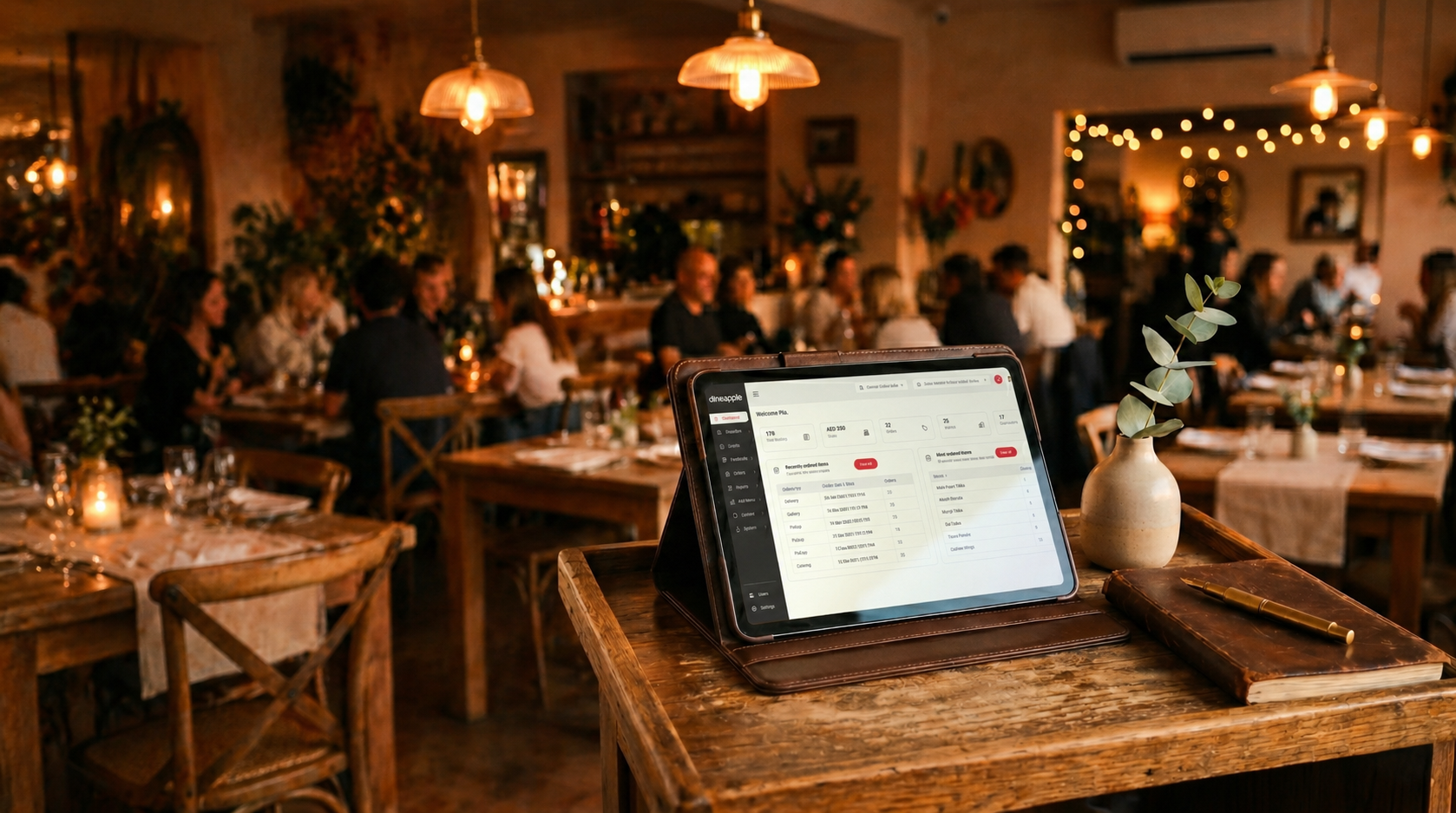
Dineapple's digital menu follows this model. Guests scan the code, then browse, build and order from the table. Each item shows its description, allergens and dietary tags. Your team edits a dish once, without reprinting, and modifier and bundle flows let guests customise their order. The menu shares a platform with reservations, table ordering and the kitchen display, so orders reach the kitchen without anyone retyping them.
The Starter plan includes the digital menu, while table ordering and the kitchen board come with Growth. Browse the pricing page for the full plan breakdown, or read the who it's for page to see how independent restaurants, hotel F&B teams and restaurant groups use it.
Questions restaurant owners ask
Do guests need an app?
No. Any modern phone camera opens the menu in a browser.
Can a QR code menu cover allergens properly?
Yes, when you tag each dish clearly and review the tags regularly. Guests should still feel free to ask your team to confirm.
What about guests who dislike scanning?
Offer a printed copy and train your staff to hand it over with a smile. You will find more answers on the Dineapple FAQ.
Before you print the code
Audit your menu this week, scan your own code from the farthest table, and fix whatever annoys you. When you want menus, ordering and the kitchen in one system, book a Dineapple demo and see the digital menu with your own dishes.
Â